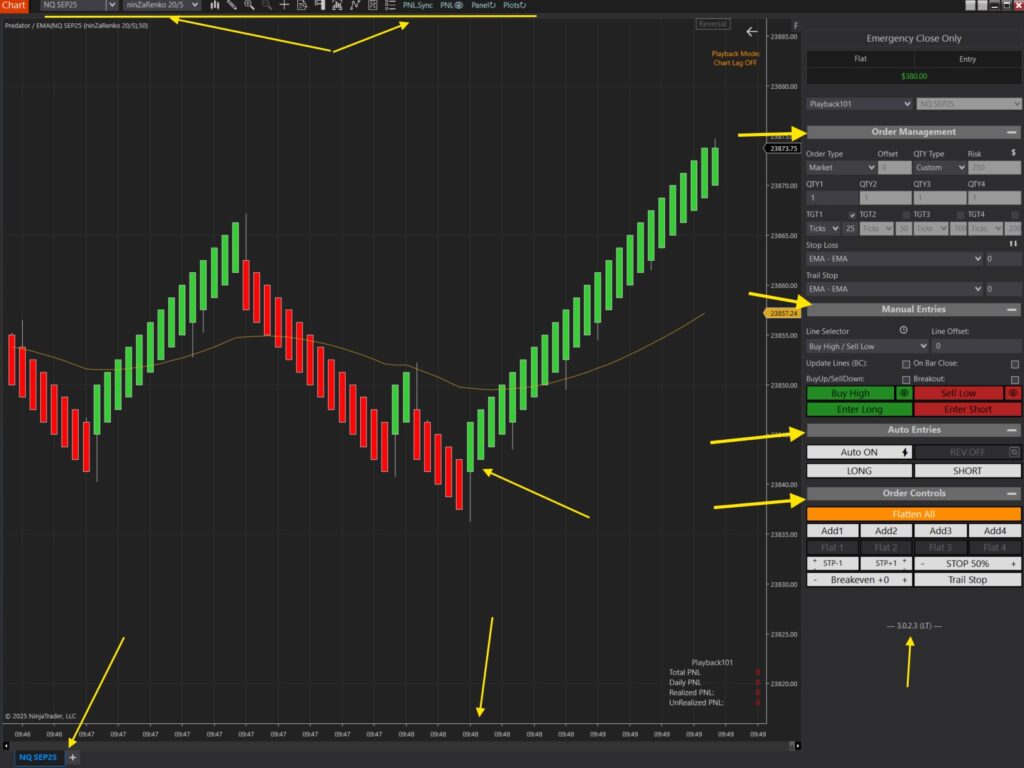
These steps will help in figuring out why the Predator may not be taking trades. 9 times out of 10 it's an over filter condition — an extra indicator (MA, RSI), an additional filter (time or PNL limit), and so on. The Predator has many options to filter out your tades, and it's possible to over-filter to the point of preventing trades.
These steps should help resolve any entry elated issues. If you're still having troubls after these steps, send all the info requested in the final step.
Always make sure you're on the latest version of the Predator X.
- New Versions can contain bug fixes or new features that are not available in previous versions. We update often based on user requests. Make sure that you keep checking for the latest versions.
- Please see this article to learn How To Update To The Latest Version
You need at least 1 target selected to enter a trade. No targets = no trade. To enter without a profit target, check the 'Target' and select 'No_Profit' from the drop-down. See Profit Targets.
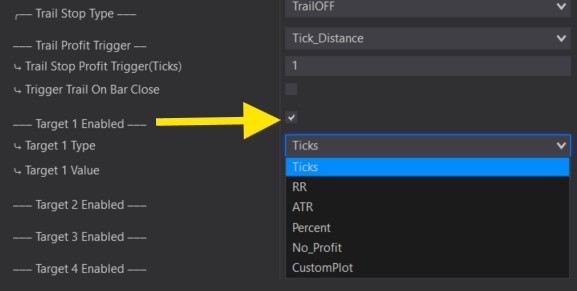
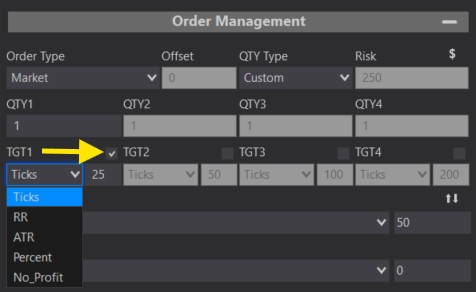
Newer members often check many options before reading the User Guide to learn how they function, which leads to factors preventing trades. The Predator X is a highly customizable tool. It can be a very simple tool, but it can also get very complicated the more you add.
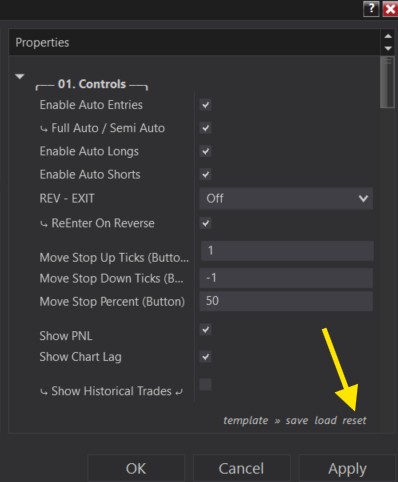
Take a step back with a fresh template: in the Predator X properties, on the lower right corner, click Templates → RESET to return everything to default.
If you have multiple settings, start with just 1 entry, confirm it works, then add conditions one by one.
Note: don't save templates as 'default' — that can carry settings from a previous strategy into your new one.
Follow the pre-trading steps to refresh your chart and strategy and eliminate external factors that can cause strategies to fail
Please see this article and follow all steps before continuing to the next step: Do This At The Start Of Each Trading Session.
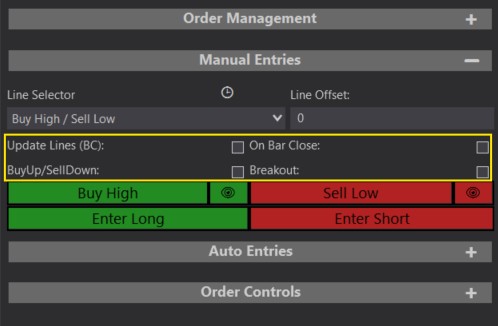
With a fresh template, keep the check boxes above the Buy High / Sell Low buttons unchecked for now — they serve different functions that often delay an order until at least the next bar.
Enter Long / Enter Short:
- with boxes unchecked, the Enter Long / Enter Short buttons should get you into a position right away.
Buy High / Sell Low:
- These buttons place a line on the chart; with boxes unchecked, as soon as the price is above your Buy High line it will enter Long. As soon as the price is below the Sell Low entry line it will enter Short.
- Clicking the eye icon alone will NOT enter a trade — The Eye Icon simpy lets you adjust the lines first, without entering a trade.
- Push the Buy High / Sell Low button to make the lines live!
We have a compilation of ‘Short Vids’ that can help cover the many configurations of the Manual Entry buttons to get your exact entry point. Check out the Manual Entry Shorts to learn how the Manual Entry Buttons can be used.
There are a few simple checks we must ensure so that the Predator will execute trades based on your Auto Entry selection. It is highly recommended to read each Auto Entry section individually and watch any videos that may go along with it. Some were recorded with older versions of the Predator, but will still be quite relevevant today.
- I will use a Renko Reversal as an example. But ALL auto entries follow similar steps.
- Please follow these steps WITHOUT any additional indicators or filters for now. Keep a default template and simply add the auto entry to understand how it works first. We can start adding more later on!
Step 1:
After selecting 'Show X Auto Entry,' you must also select the ⚡ Trade X Auto Entry ⚡ option (with lightning bolts next to it for whatever Auto Entry you select) so it actually takes the trade. Confirm from the chart once the Predator X is enabled — the selected Auto Entry shows top-right; white background = ON (will trade), transparent = OFF.
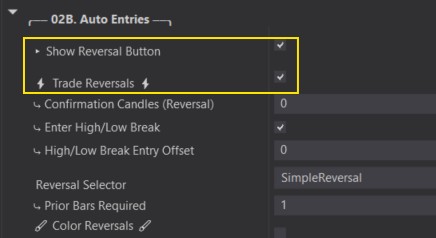
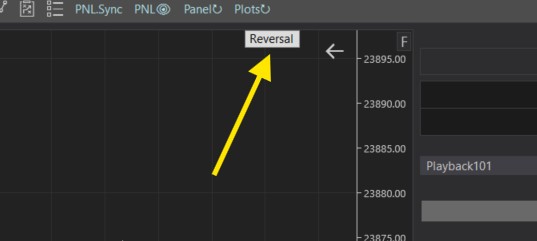
Step 2:
Also ensure all Auto Entry controls are turned ON (from properties or the chart trader panel) — any in the OFF position can prevent trades. Learn more about how these controls work in the User Guide Full/Semi Auto Trader Controls.
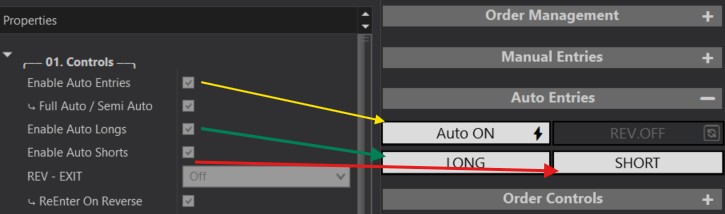
If using Custom Signals, Please verify Step 5 before proceeding to these next sources!
- Custom Draw Object Signal (Arrow or Text): Proceed to this Article: OBJECT Signal Troubleshooting
- Custom PLOT Signal (Plot Values): Proceed to this Article Plot Signal Troubleshooting
No problem at all! We can help, but we will need some info in order to help us get a better understanding of what you are seeing and what is happening.
After resetting your template and following the steps above, please send the following information: email us or DM on Discord (TradeSaber/Dre) with:
- Save and send your Predator Strategy XML template. Follow these steps: Share Your Strategy
- A screenshot of your entire screen, include the following in the screenshot:
- Entire Chart
- Entire Chart Trader Panel expanded (send multiple if needed and ensure to include your version number!)
- Show lower time stamp and all the way to show any other Chart Tabs as well.
- Show upper Toolbar (include instrument, bar type and size and all buttons)
- Please also point to your intended entry and provide any other additional information that you may have that can help us.
See below for an example of what we need.
Custom Signals require additional info — see the final step in the signal troubleshooting guides.